White background product photography
Turn your product photo into a white background image.
Upload a product photo and use the dedicated white background workflow to create a clean presentation for your store. Review the result against the original before using it in a listing.
Upload your product photo in the white background template. If you need to sign in, you will return to the same template.
Existing workflow example
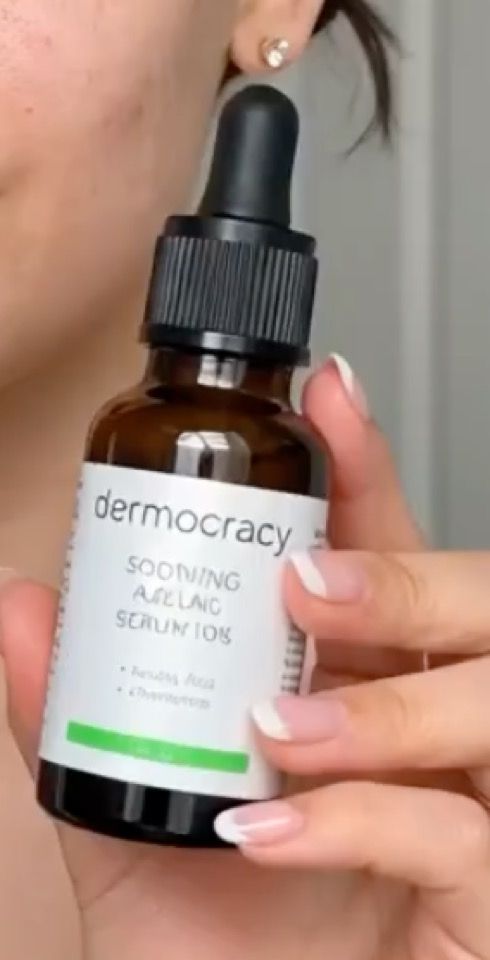
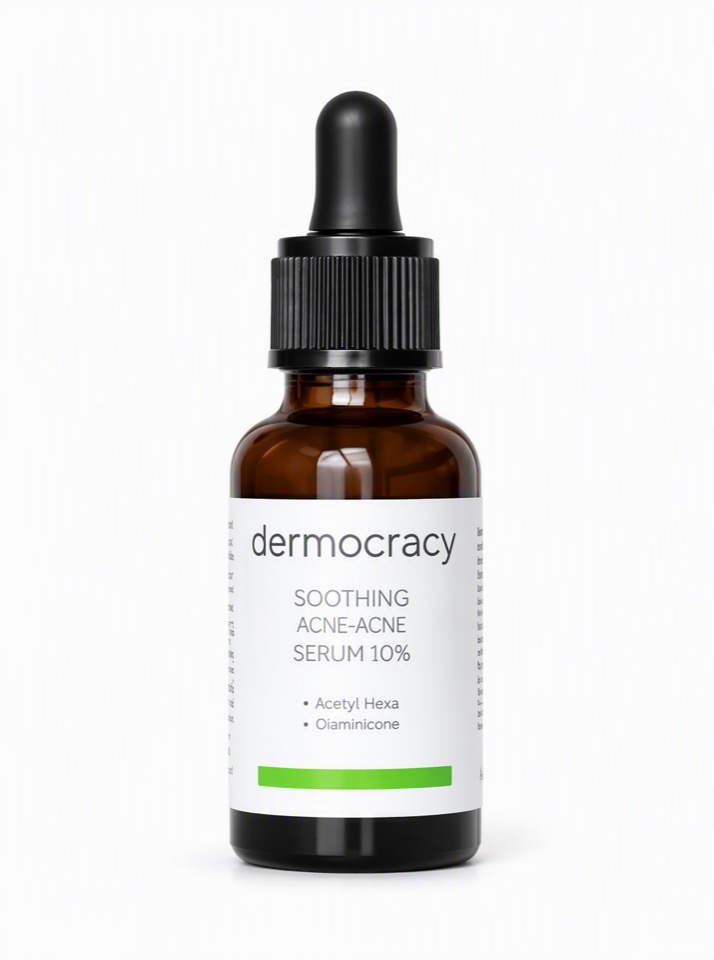
This example changes the background and presentation. Some label lettering also changes: compare text, shape and color with your original. This is image generation, not a pixel-preserving cutout.
How to create a white background product photo
- 01
Upload a clear product photo
Use an image that shows the complete item. Keep the important label, edges and material details visible; avoid blur and heavy obstruction.
Choose the right product-photo workflow - 02
Choose the result you need
The button opens White Background in the workspace. Set the image options and describe the product view you need before generating.
- 03
Review, then use your image
Compare the generated result with the source at full size. Keep only images that accurately represent the item you sell.
Keep the actual product as your reference
A white background can simplify the composition. It does not prove that an AI-generated image preserves every product detail. Use your original photo to make that decision.
- Read the brand name, label wording and small print.
- Compare the product shape, openings, edges and proportions.
- Check color, surface texture, reflections and shadows.
- Check the current image requirements of the store or marketplace where you will publish.
White background product photo questions
Is this a background remover?
This workflow generates a new product image with a white background. It can change details on the product as well as the background. If you need to preserve every original product pixel, use a cutout workflow instead.
What photo should I upload?
Start with a clear image of the complete product. Labels, seams, handles and other defining details should be visible. A hidden or blurry detail is not a reliable reference for generation.
Can I use the result on Amazon, Shopee or my own store?
Review both the generated image and the current requirements for your chosen store or marketplace. This workflow does not certify marketplace acceptance or guarantee that generated details match the item.
What does it cost to create an image?
See the pricing page for available plans. Check the credit amount shown in the workspace for your selected generation settings before you submit a task.